Embedding
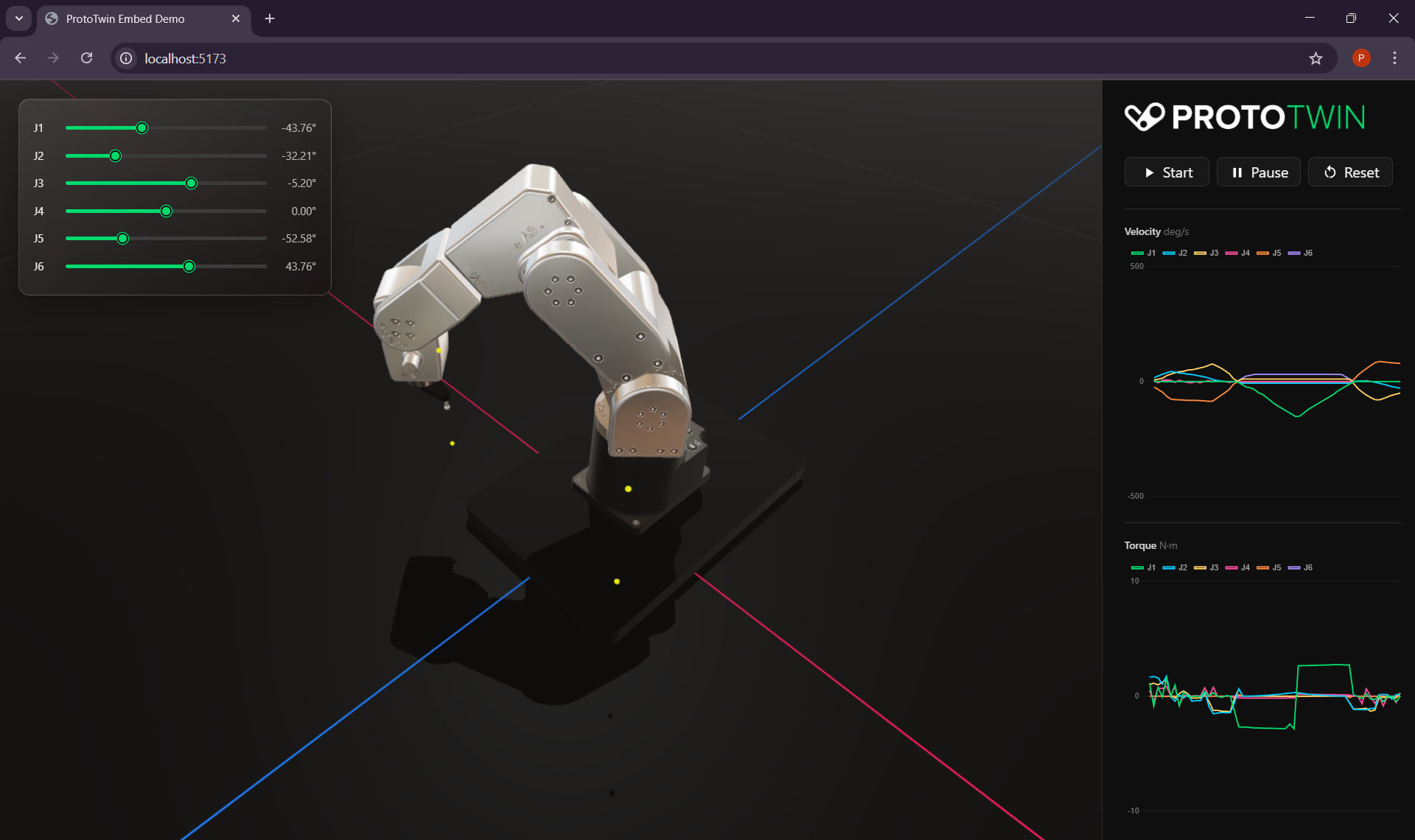
Using the @prototwin/embed NPM package, you can embed ProtoTwin’s simulation environment into other applications or websites to create custom 3D HMIs, digital shadows, or showcase interactive simulations on an existing website.
The ProtoTwin Runtime is entirely free. Simulation models can be distributed free of charge and embedded into an existing website without any license fees or branding requirements.
Getting Started
The best way to get started is to clone the demonstration web app:
git clone https://github.com/prototwin/EmbedDemoYou can then install the required packages:
npm installFinally, start the web application:
npm startOpen the local URL printed by Vite to view the demonstration.
How it Works
ProtoTwin Simulate is embedded as an iframe. The parent window can send commands to ProtoTwin using the API provided by the @prototwin/embed package. You can issue commands to programmatically load models, run/pause/reset the simulation, make changes to the simulation and extract data from the simulation.
Note that since ProtoTwin uses a multithreaded architecture that relies on SharedArrayBuffer. Most browsers will only enable support for SharedArrayBuffer on cross-origin isolated pages. You must serve the page that embeds ProtoTwin with these headers:
Cross-Origin-Opener-Policy: same-origin
Cross-Origin-Embedder-Policy: credentialless
Using the @prototwin/embed package is as simple as installing and importing the package, creating a viewer instance, and issuing commands.
import { embed } from "@prototwin/embed";

const viewer = embed({
    element: document.getElementById("viewer")
});

await viewer.openURL("https://example.com/model.ptm");
await viewer.start();
Commands
Basic commands:
await viewer.start(); // Start the simulation
await viewer.stop(); // Pause/stop the simulation
await viewer.setSpeed(2); // Change the target simulation speed
await viewer.reset(); // Reset the simulation
await viewer.clear(); // Clear the scene
await viewer.controlbar(true); // Enable/display the control bar
await viewer.openURL("https://example.com/model.ptm"); // Load a model from a URL
await viewer.openBuffer(arrayBuffer); // Load a model from an ArrayBuffer
Scripts
You can also execute a standalone script:
const response = await viewer.executeScript(`
    import type { World } from "prototwin";

    export default function(world: World) {
        console.log(world.time);
    }
`);

console.log(response.diagnostics);
console.log(response.logs);
If the script fails to compile or throws at runtime, response.success will be false and the diagnostics/logs will contain the details:
if (response.success === false) {
    console.error(response.diagnostics);
    console.error(response.logs);
}
Signals
Signals can be read from the simulation. The readSignals() function returns a ReadBuffer, which contains the values of all the signals in the model in an efficient binary format. You can use the ReadBuffer.get() function to obtain the value for a signal at the specified address:
const signals = await viewer.readSignals();
const value = signals.get(10);
Similarly, you can use the writeSignals() function to write a list of signals in a single batch operation:
const writes = new WriteBuffer();
writes.setBit(1, true);
writes.setUint32(2, 42);
writes.setFloat(3, 1.5);

await viewer.writeSignals(writes);
Note that the signals API is a low-level API and does not perform any validation.
Error Checking
Commands resolve with a response object that indicates whether the operation succeeded:
const response = await viewer.start();
if (response.success === false) {
    console.error(response.error);
}
Lifecycle
Remove/shutdown the embedded instance of ProtoTwin when it is no longer needed:
viewer.dispose();