Create digital twins faster with assets
Learn how you can build digital twins of industrial automation systems faster than ever before with ProtoTwin Assets.
The latest V1.2 release of ProtoTwin introduces assets, allowing you to create digital twins of industrial automation systems more easily and faster than ever before. Assets are reusable, self-contained pieces of equipment that can be quickly imported into existing simulation models. Some examples include:
- Industrial robots
- End-of-arm tooling (EOAT)
- Conveyors
- Gantries
- Photoelectric sensors
- Pushers
- Control panel buttons and switches
- Payloads (e.g., boxes, bottles, and containers)
- Entire reusable machines
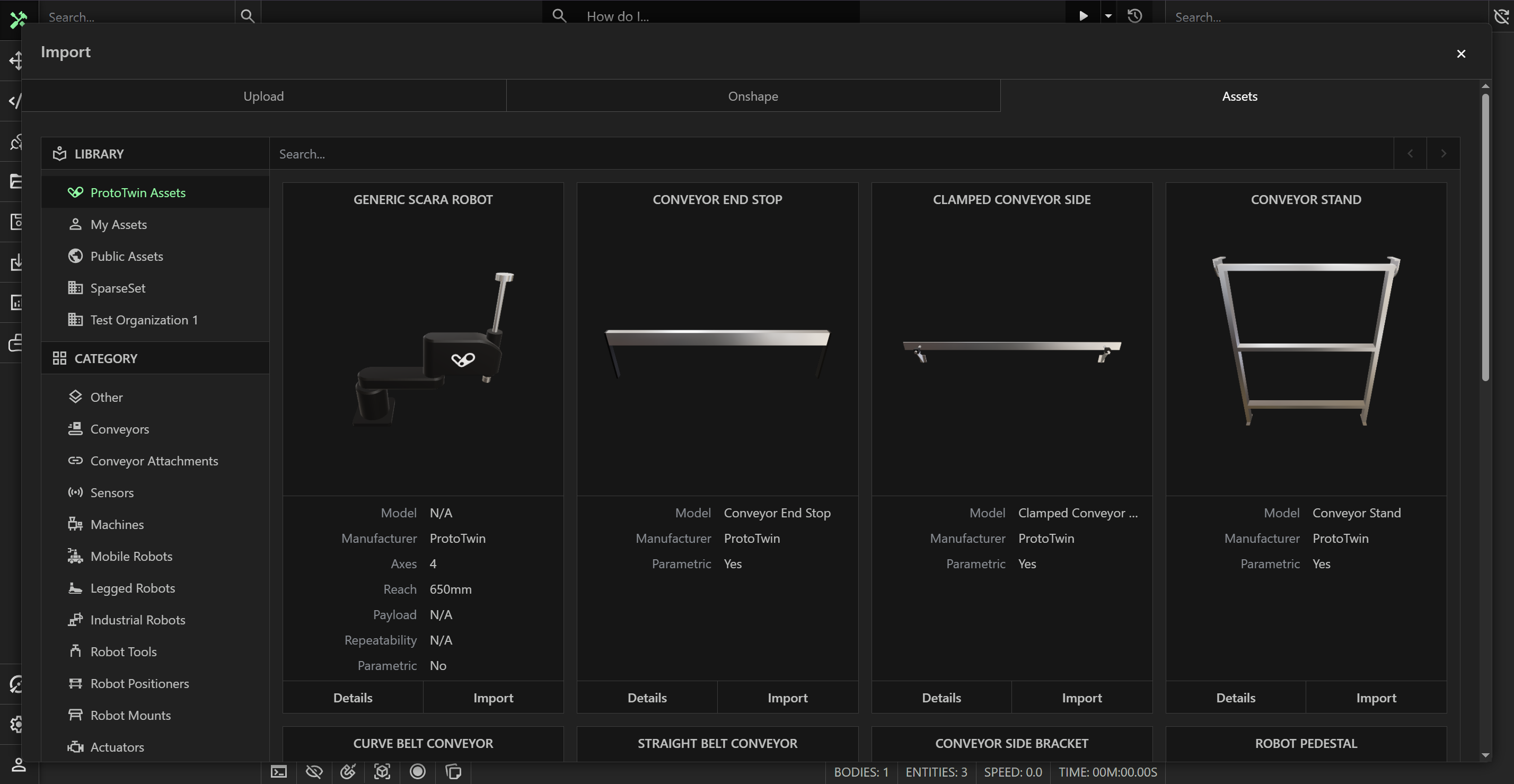
There are already a number of assets available in the asset library. However, you’re not limited to the assets that we provide. You can easily create your own assets and publish them to the asset library. Published assets can be private or public. Making an asset private allows only people within your organization to view and import it. Public assets are available to all users.
Parametric Assets
The recently added Mesh Builder and Collider Builder APIs allow you to create parametric assets by extruding or sweeping boundary curves. One example is the new parametric Straight Belt Conveyor asset. After importing the asset, you can change a number of properties through the inspector, including the length and width of the conveyor. As you change a property, the conveyor’s meshes, physics colliders, and transport surface update automatically.
Connectors
Many assets are designed to be easily snapped together. In V1.2, we introduce Connectors, comprising a powerful programmatic Connector API, the Point Connector component, and the Curve Connector component. The Straight Belt Conveyor asset has been configured with a number of connectors. For example, these connectors allow you to:
- Snap the start of one conveyor to the end of another conveyor.
- Snap the start or end of one conveyor to the side of another conveyor.
- Snap guide rails to the side of a conveyor.
- Snap support stands along the length of the conveyor.
- Snap brackets to the side of a conveyor, allowing sensors to be mounted.
- Snap end stops along the length of a conveyor.
Assets can be designed to work together through connections. For example, the Conveyor Stand asset automatically resizes itself when snapped to a conveyor. It also listens for changes to the conveyor, so changing the conveyor’s width automatically changes the width of any connected conveyor stands. The combination of parametric conveyors and conveyor attachments allows you to quickly create large conveying systems.
Packages
Packages were introduced in V1.0 as a way to reuse scripts, including scripted components and tools, across different models. Assets are designed to work seamlessly with packages. Any scripts used by an asset must be provided through a package. This allows us to manage package dependencies effectively, provides a natural way for different assets to work together, and helps resolve naming collisions. Two different packages can each export a component called “Controller” without the types conflicting.
By depending on packages, assets can have custom components, each of which can provide custom I/O points. For example, the Sick G10 asset depends on the @prototwin/sick-g10 package, which provides a component that implements the behavior of the Sick G10 sensor, along with a digital output.
Authoring Assets
Creating an asset can be as simple as:
- Importing the CAD for the asset
- Adding components that define the behavior of the asset
- Adding the asset.json file through the script editor
- Clicking the Publish button
The first two steps will be familiar to anyone who has used ProtoTwin before. The asset.json definition file describes the asset. The information contained in this file is used to categorize the asset and display information about it in the asset library. To create the asset definition file, open the script editor, click the button to add a new file, and select Asset Definition as the file type. This creates the asset.json file and automatically populates it with the required properties. The example below shows the asset definition file for a Universal Robotics UR10e robot:
{
    "name": "@organization/ur10",
    "title": "UR10e",
    "public": true,
    "category": "IndustrialRobots",
    "compatibility": ">=1.2.0",
    "properties": {
        "manufacturer": "Universal Robotics",
        "model": "UR10e",
        "parametric": false,
        "axes": 6,
        "payload": "12.5kg",
        "reach": "1300mm",
        "repeatability": "0.05mm"
    }
}
Once the asset is fully configured, right-click the asset.json file and select Publish. The asset will immediately be scheduled for processing, which typically takes around 30 seconds. During processing, the asset’s graphics materials, physics materials, and physics layers are automatically namespaced. Additionally, we render a 360-degree thumbnail video for display in the asset library. Once processing is complete, you will receive a confirmation email. If the public property in the asset.json file is set to true, all ProtoTwin users will immediately be able to import the asset into their simulation models.
Using AI with Assets
Torq, our powerful agentic AI assistant, can search the asset library, import assets, and configure component properties. It can also programmatically snap assets together. Let’s take a look at a simple prompt:
Hey Torq! Can you import a single conveyor belt with a sensor positioned toward the end and attached via a bracket?
What’s Next?
Over the coming weeks, we will significantly expand the asset library by introducing additional assets such as:
- Many additional industrial robots
- Additional sensors
- Vision systems
- Roller conveyors
- Simple actuators (e.g., pushers)