Radiant
ProtoTwin Radiant is our native offline rendering application that makes it easy for you to render high-quality realistic videos of your physics-based simulations. Models that you create in ProtoTwin Motion, Simulate or Connect can be path traced rendered easily using ProtoTwin Radiant.
Requirementss
You will need to create an account before you can install ProtoTwin Radiant. After creating an account, you may download the installer from the account page. Unfortunately, rendering high-quality videos is computationally demanding. We recommend using a machine with a powerful GPU if you are looking to render more than a few hundred frames locally. For most local rendering tasks, an NVIDIA GeForce RTX 3090 or 4090 is more than capable.
A video may take many hours or even days to render. The time to render a video depends on the video length, frame rate, image resolution, and other render settings such as the noise threshold or max bounces. If the dynamics of your scene are complicated, more samples will be required to reduce the noise in the rendered image below the noise threshold. This is noticeable in scenes with glass bottles, fluids, mirrors and interior lighting.
Pricing
ProtoTwin Radiant is free to use for rendering frames on local hardware, but you will need access to a machine with a powerful GPU if you wish to render long videos at a high resolution. Alternatively, you can choose to render your frames on the cloud, where Radiant uses a pool of remote GPUs to render batches of frames in parallel. Unfortunately, cloud rendering is not free and consumes cloud credits, but allows you to significantly reduce the total render time.
ProtoTwin Radiant uses a pool of NVIDIA RTX 4090 series GPUs to render frames on the cloud. The cost to render frames on the cloud is 1 credit per hour per GPU. You can purchase credits from the balance page at a price of $1 per credit.
Analysis
If you want to render a 2 minute video at 60 FPS, there will be a total of 7200 frames. Assume on average it takes 1 minute to render a frame. The table below summarizes the approximate time and cost to render the entire video using different hardware configurations:
| 1 Local NVIDIA RTX 4090 GPU | 1 Cloud NVIDIA RTX 4090 GPU | 5 Cloud NVIDIA RTX 4090 GPUs | 10 Cloud NVIDIA RTX 4090 GPUs | |
|---|---|---|---|---|
| Time | 5 days | 5 days | 1 day | 12 hours |
| Cost | $0 | $120 | $120 | $120 |
| Credits | 0 credits | 120 credits | 120 credits | 120 credits |
Considerations
Please note that we cannot determine the price to render a video beforehand. This is because the time to render each frame may differ slightly as the camera moves through the scene and the position of objects in the scene change. ProtoTwin Radiant will calculate an estimate of the total render time and the cost (in credits) and will progressively update its estimate of the total time and cost as more data is collected.
Workflow
Described below is a general workflow that you can follow to render videos with ProtoTwin Radiant.
Record Frames
Start by opening your model in ProtoTwin Motion, Simulate or Connect. You can then record the simulation to a sequence of GLTF frames by clicking the start recording button in the infobar at the bottom.
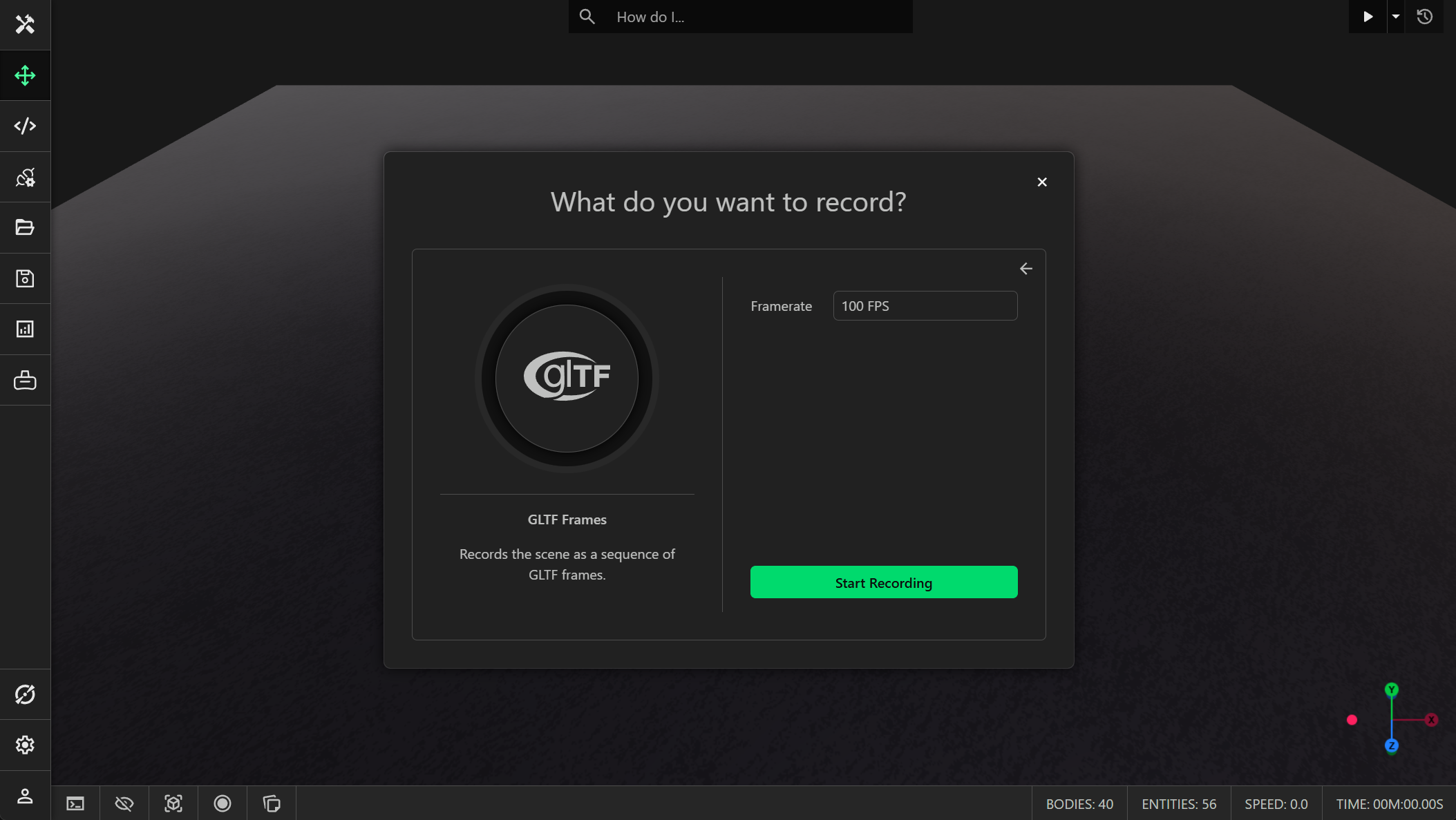
Choose an appropriate frame rate. If your simulation has fast-moving parts, you may need a higher frame rate in order to capture the smooth motion. Run the simulation and click the stop button in the infobar at the bottom to capture all the GLTF frames and save them to your local drive as a .zip file.
Load Frames
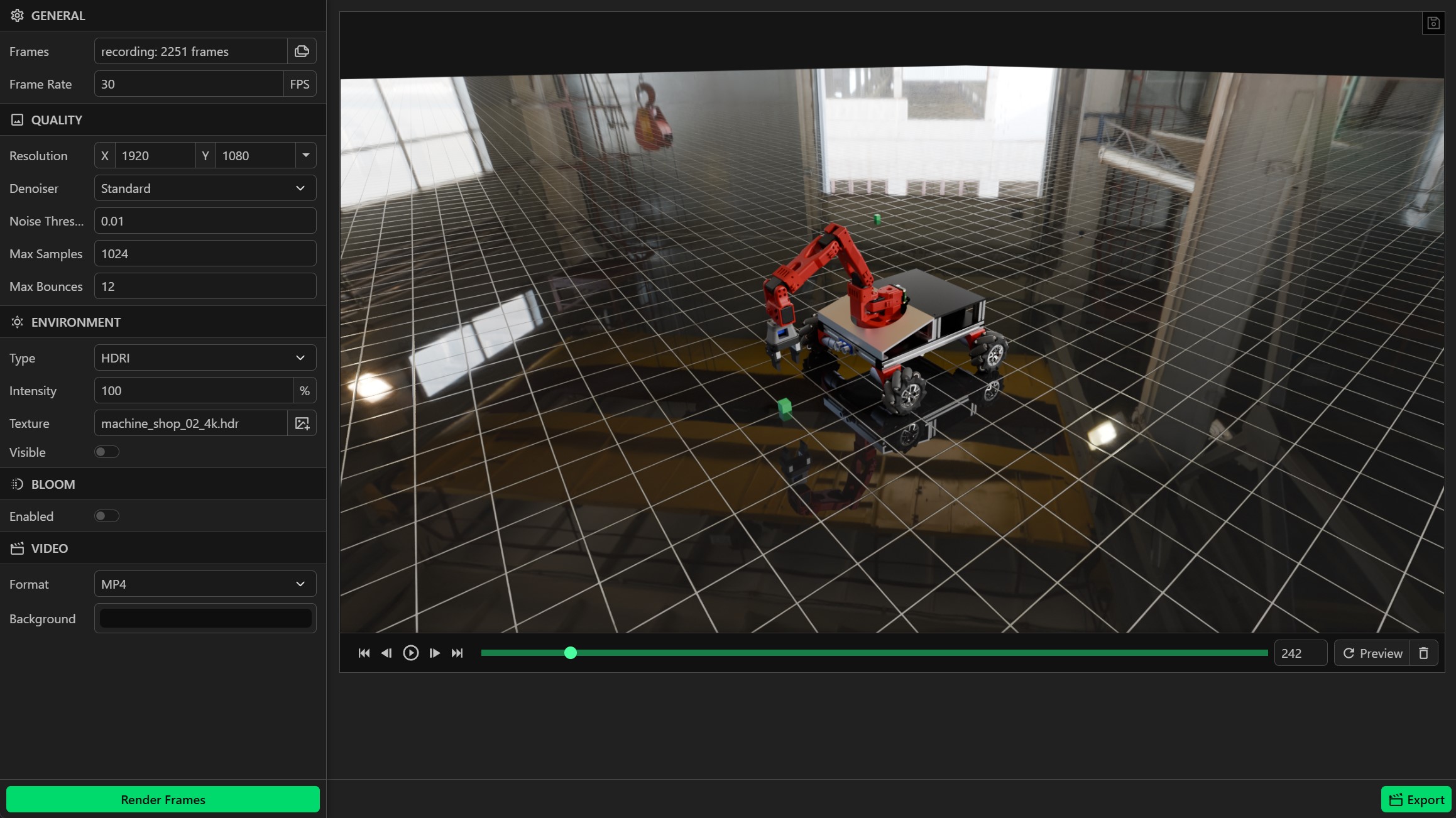
Launch ProtoTwin Radiant and load the recorded .zip file of frames. Configure the render settings in the left explorer pane according to your preferences.
Preview Frames
You can click the Preview button at the bottom right to render a single frame. It’s important to preview individual frames before rendering all the frames to ensure the textures, environment lighting, camera movements and render settings have been configured appropriately.
Discover Issues
After you have previewed a bunch of frames, you may discover some issues with your recording. Here are some common issues to look out for:
- Weird artifacts caused by coplanar faces. If you have a mesh with faces that lie in the same plane as another mesh, you may notice weird flickering or black splotches. In 3D graphics, this issue is commonly referred to as z-fighting. Since ProtoTwin Radiant cannot determine which face is in front of the other face, this causes a weird flickering effect. To fix this issue, you must either delete the mesh or offset one of the meshes to prevent faces from overlapping.
- You can simulate glass in ProtoTwin Simulate by creating a graphics material with low opacity, low roughness and high metallicness. However, for simulating glass in ProtoTwin Radiant, you must also set the transmission property to a high value. We often notice users forget to set the transmission property since it gets ignored by the renderer in ProtoTwin Simulate (which uses rasterization), however it does get used by renderer in Radiant (which uses path tracing).
- When rendering an indoor scene with interior lighting, you may notice after previewing a frame that the scene appears much darker than expected. This can happen if you forget to set the emissive strength for the graphics material of the light in ProtoTwin Simulate. The emissive strength controls how much light is emitted. Please note that the emissive strength is not used by the renderer in ProtoTwin Simulate, does get used by renderer in ProtoTwin Radiant.
Render Frames
Once you’re happy with the settings, you can click the Render Frames button at the bottom left of the explorer pane to start rendering a sequence of frames. This will open a new dialog window that allows you to configure some additional settings:
- Skip Existing: Set to true to skip existing rendered frames. Set to false to re-render frames that have been previously rendered.
- Render Cloud: Set to true to render the frames on the cloud. Set to false to render the frames on your local hardware.
- GPU Count: The number of GPU instances to start when rendering frames on the cloud. You must select anywhere between 1 and 10 GPU instances.
- First Frame: The frame index of the first frame that gets rendered.
- Last Frame: The frame index of the last frame that gets rendered.
You can kick off the render task at any time by clicking the Start Rendering button. You will need to wait some time until all the frames have finished processing.
Local Rendering
When rendering locally, you can cancel the render task at any time by clicking the Stop Rendering button at the bottom left of the explorer pane. A progress bar is displayed at the top of the screen to show you the progress of the frame that is currently being rendered.
Cloud Rendering
When rendering on the cloud, you can configure the number of GPU instances to use. After you click the Start Rendering button in the dialog window, Radiant will begin to execute the following steps:
- Upload: The .zip file of frames will be uploaded to cloud storage.
- Provision: The cloud GPU instances will be configured to render the frames.
- Render: The cloud GPU instances have now started rendering the frames.
- Download: The Radiant app will finalize downloading rendered the images from cloud storage to your local drive.
- Complete: The render task is complete and all cloud GPU instances have terminated.
The total progress of the render task is displayed after at least one cloud instance has started rendering. The rendered images will be automatically downloaded to your local drive whilst in the process of rendering the frames.
Please note that it is safe to close the Radiant app after the cloud render has started. When you re-open the app, any frames that have already been rendered on the cloud instances will be downloaded to your local drive. The cloud GPU instances will be terminated automatically once all the frames have finished rendering, and credits will no longer continue to be deducted from your account balance, even if you close the Radiant app.
Once the rendering has started, you can click the Cancel button to cancel the cloud rendering task. This will automatically shut down all the cloud GPU instances and stop deducting credits from your account balance.
Export Video
Once all the frames have finished rendering, you can click the Export button at the bottom right to export the video to either an MP4 or WebM file.
Settings
The render settings can be used to control the quality and appearance of the rendered video:
- Frames: Upload the the .zip file of frames exported from ProtoTwin Motion, Simulate or Connect.
- Frame Rate: Frame rate of the recording determined from the uploaded .zip file. This value cannot be modified.
- Resolution: Output resolution for the rendered images. Higher resolutions can capture greater detail, but take significantly longer to render.
- Denoiser: Denoiser used after the image has been rendered. The standard denoiser can help to reduce noise. If you are rendering with a very low noise threshold and a high number of samples, it might be possible to disable the denoiser.
- Noise Threshold: Threshold used to determine when an area of the image has sufficiently low noise that no more samples are required. Large values speed up rendering at the cost of increased noise and reduced quality.
- Max Samples: Maximum number of samples per pixel. Small values speed up rendering at the cost of increased noise and reduced quality.
- Max Bounces: Maximum number of times a light ray can bounce off a surface. Small values speed up rendering at the cost of reduced detail and increased noise on reflective and translucent surfaces.
- Environment Type: Type of environment lighting to be used. None provides no environment-based lighting and is fast, but offers less interesting reflections. Sky procedurally generates outdoor lighting conditions. HDRI allows you to specify an environment texture, which can provide the most interesting lighting conditions and reflections, but is far more costly to render.
- Environment Intensity: Controls the amount of light provided by the environment.
- Environment Texture: Choose or upload a HDR image for environment lighting and reflections.
- Environment Visible: Whether the HDR texture should be visible in the rendered image. If disabled, the background will be transparent or replaced with the specified background color when exporting to MP4.
- Bloom Enabled: Enable post-process bloom effect causing any bright areas in the rendered frames to glow.
- Bloom Threshold: Determines how bright a pixel must be for it to contribute to the bloom filter.
- Bloom Strength: Controls the strength of the bloom filter. Large values will cause the glow to be more intense.
- Video Format: Format to use when exporting the video. MP4 has excellent compatibility, but does not support transparency. WebM is a modern web format with good browser compatibility and supports transparency.
- Video Background: Background fill color that replaces the transparent pixels when exporting to MP4.