Controlbar
The controlbar can be used to control the simulation. It can be used to start, pause and reset the simulation. You may also change the speed of the simulation, as a multiple of real-time.
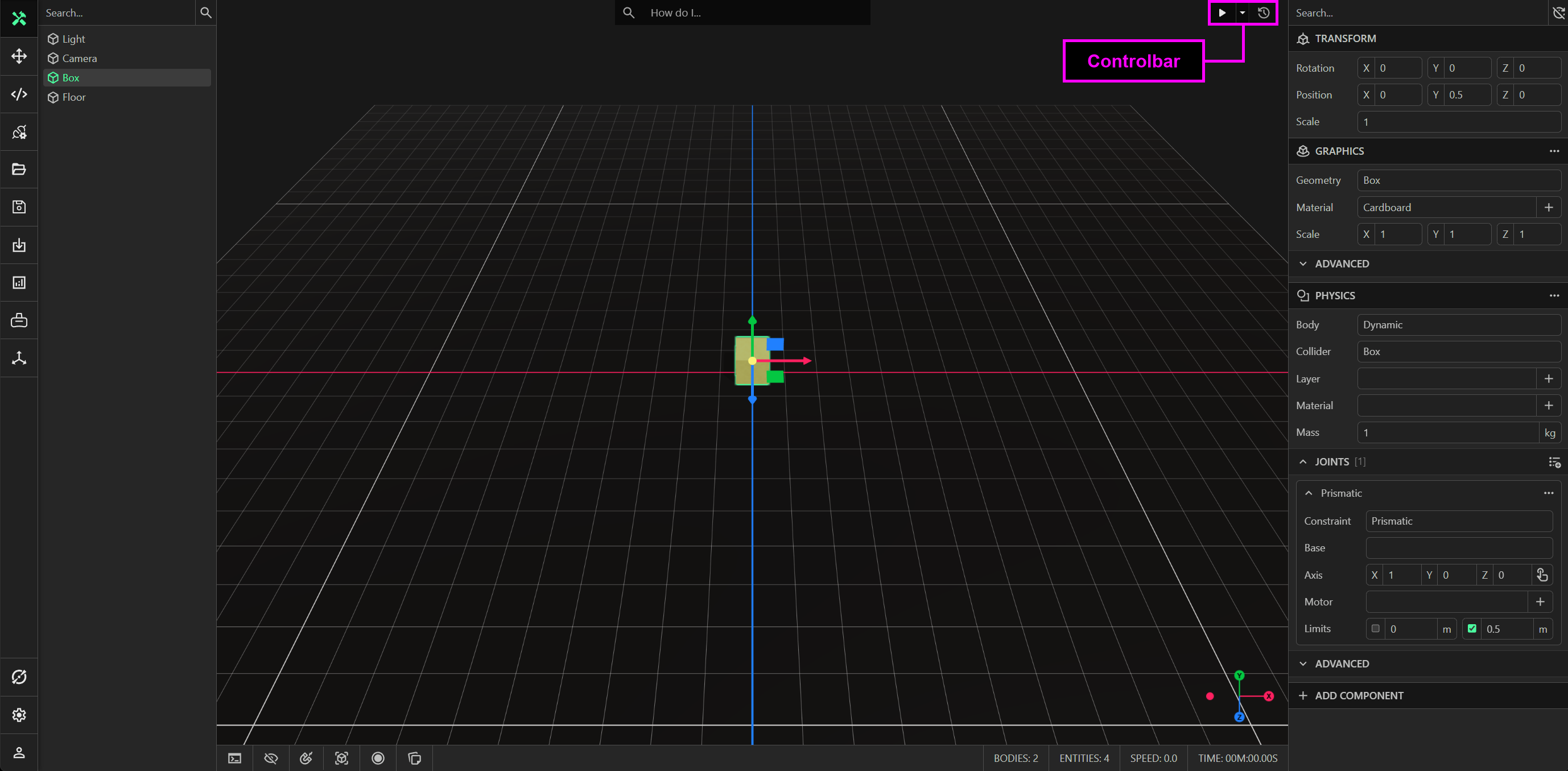
Play
Click the play button to start the simulation. This will cause the play button to be replaced with a pause button.
Pause
Click the pause button to pause the simulation. Clicking this button again will resume the simulation.
Reset
Click the reset button to reset the model to its initial state, immediately before the simulation was started. The reset button is disabled if the simulation is not running. Any entities or components that are added or removed whilst the simulation is running will be lost after resetting.
- Any entities, components or materials that are added whilst the simulation is running are automatically removed.
- Any entities, components or materials that are removed whilst the simulation is running are automatically added back.
- Any entities, components or materials that are modified whilst the simulation is running are automatically reset back to the state immediately before the simulation was started.
Do not attempt to make persistent modifications to a model whilst the simulation is running, as any modifications made while running are lost upon resetting. ProtoTwin will display the following message at the bottom of the viewport when the model is running: “Reset to make persistent changes” to inform you.
Speed
The dropdown button is an arrow to the right of the play button, allowing you to change the speed of the simulation, as a multiple of real-time. You can select between the following options:
- 0.1X speed
- 0.5X speed
- 1.0X speed
- 2.0X speed
- MAX speed
- STEP option
The MAX speed option will run the simulation as fast as possible, limited only by the speed of your hardware. The STEP option can be used to step between frames, advancing the simulation by one timestep.