Toolbar
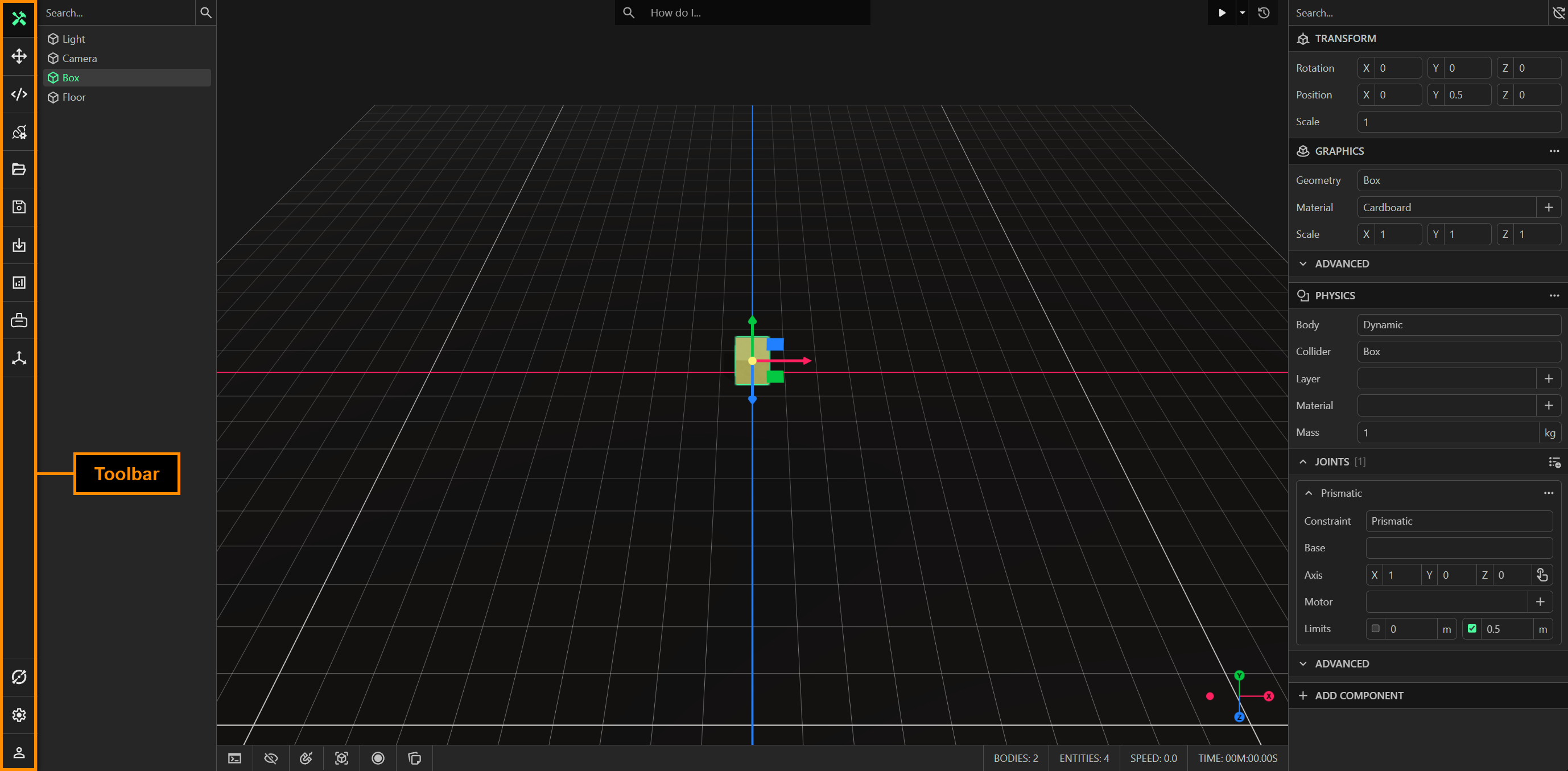
The toolbar is a set of buttons for switching between modes and performing common actions.
Edit Mode
Use edit mode to make changes to your model. The toolbar, controlbar, explorer, inspector, viewport and infobar are all visible. You can create, delete, rename, filter, search, and reparent entities. The transform gizmo can be used to translate, rotate or scale selected entities. You can add components to entities, modify component properties, or remove a component from the selected entity. CAD, 3D assets, and other ProtoTwin models can be imported into the current model.
Navigate Mode
Use navigate mode to explore a model without the risk of making changes. Swap to navigate mode to interact with the physics by clicking and dragging. Please that the simulation must be running. The toolbar, controlbar, viewport and infobar are visible in navigate mode. The explorer, inspector, import button, and gizmo are hidden. Entity selection is disabled in this mode. You can still play and reset the simulation, open models and save models.
Scripting Mode
This mode opens the integrated script editor. The controlbar, inspector, viewport and infobar are hidden. The entity explorer is replaced with a file explorer, which lists your scripts and any static assets used by those scripts. You can create, delete, edit and rename scripts. All scripts are written in TypeScript. IntelliSense and auto-completion are supported, with all API functions documented. Click the file button at the top of the file explorer to create a new file. You can right-click a file to rename it or delete it. You can use the AI agent Torq in the script editor to read, create and modify files, similar to Cursor or VSCode.
IO Browser
Click the IO button to toggle the IO Browser. The IO Browser allows you to setup a connection to a PLC (tag server) and connect or bind PLC tags to IO signals in your model. The IO Browser pane is resizable by dragging the left edge.
Open
Click the open button to open an existing .ptm file. This will cause a dialog window to open, allowing you to choose a model to open from your local filesystem. The .ptm file is the file extension for models in ProtoTwin.
Save
Click the save button to save the current model as a .ptm file. This open a dialog window, allowing you to save the model to your local filesystem. If you click the save button while the simulation is running, ProtoTwin will automatically reset the simulation before allowing you to save your current model.
Import
Click the import button to import 3D assets, CAD files or .ptm models into the current model. The supported file types are .gltf, .glb, .step, .stp, .dae, .fbx, .obj, .stl, .urdf, .usdz, .zip and .ptm. You can import files locally from your computer, or switch to the Onshape tab to import a CAD document directly from Onshape.
Analysis
Click the analysis button to toggle the analysis pane, allowing you to view all your plots. The analysis pane is resizable by dragging the left edge.
Virtual Reality
Click the VR button to toggle virtual reality, allowing you to view your models with a VR headset. Ensure that you have first launched Meta Quest Link or SteamVR.
Transform Gizmo
This button will only appear if one or more entities are selected. You can click this button to manually toggle the transform gizmo between translation, rotation and scale. This button is particularly useful for switching between gizmo modes when multiple entities are selected.
Torq
Click this button to toggle the AI agent panel, allowing you to chat with Torq. Torq can help answer your questions about ProtoTwin, and provide general guidance when using the software. Torq can also create files, read files, modify files, execute standalone scripts, and capture a screenshot of the simulation.
Settings
Click the settings button to open the model settings. You can configure the general settings, physics settings, graphics settings, inspector units and AI permissions for Torq.
Account
Click the account button to open the account page.