Explorer
The explorer lists entities that are currently alive in the virtual world. You can select entities, rename entities, copy entities, paste entities, reparent entities, delete entities, create entities, group entities, toggle entity visibility, toggle entity selectability and search for entities.
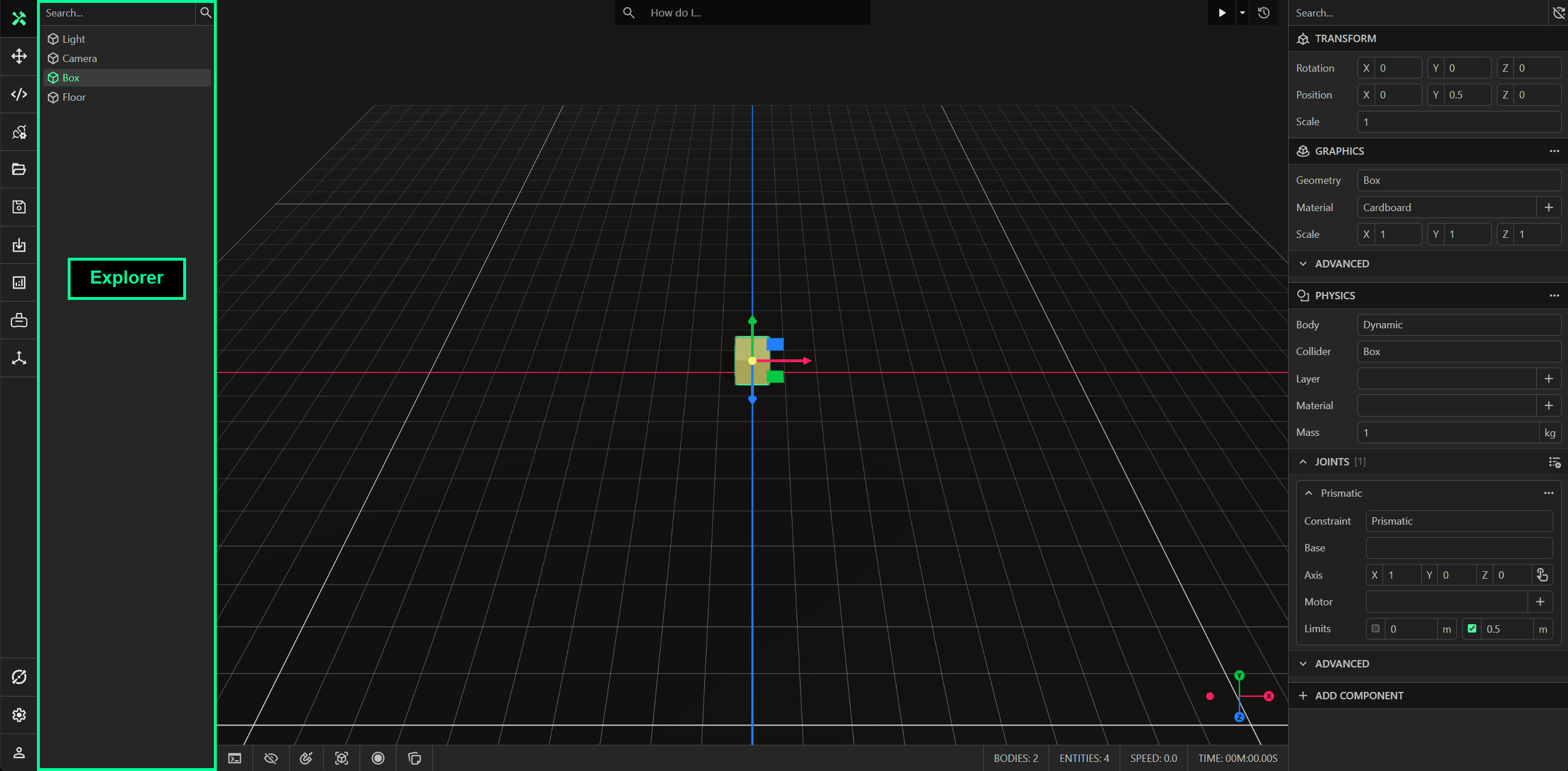
Selecting Entities
Select entities by left-clicking on an entity. You can select or deselect multiple entities by holding the CTRL key. You can select multiple consecutive entities by holding the SHIFT key. You can clear the selection by left-clicking on empty space in the viewport, e.g. the floor or the skybox.
Renaming Entities
Rename entities by right-clicking on an entity, then select Rename from the context menu. Enter a new name.
Searching Entities
Search for entities using the search field, either by entity name and/or by component name. ProtoTwin will search for entities by entity name by default. If you prefix your search term with a colon, ProtoTwin will search for entities by component name instead. For example, use :motor to search for entities that have a MotorComponent or :suction gripper to search for entities that have a SuctionGripperComponent.
You can use the search button to toggle the flags to search for entities by entity name, and/or by component name. This will filter the list and only display the entities that match your search term.
Reparenting Entities
Reparent entities using drag and drop. Simply drag an entity and drop it on top of another entity.
Copy and Pasting Entities
Copy entities by right-clicking on an entity, then select Copy from the context menu. You can then paste the entity by right-clicking in the explorer and selecting Paste. You can paste the entity as a child of another entity by right-clicking on an entity and then selecting Paste Child from the context menu.
It is possible to copy many entities. First select all the entities you want to copy using either the CTRL key or SHIFT key. Then, right-click on one of the selected entities and select Copy from the context menu. You can also duplicate entities using the transform gizmo by holding the CTRL key when translating.
Grouping Entities
Group entities by first selecting many entities, then right-click and select Group from the context menu. This will create a new entity that makes all the selected entities a child of this new entity. The parent entity will be positioned at the center of the axis aligned bounding box of the grouped entities.
This can be helpful when trying to annotate robots, though we recommend grouping parts in the CAD software using subassemblies. This workflow is required when using CAD sync to synchronize changes made to your design.
Deleting Entities
Delete entities by right-clicking on an entity, then select Delete from the context menu.
Creating Entities
Create entities by right-clicking in the explorer, then select Create from the context menu. You can create a child by right-clicking on an entity, then selecting Create Child from the context menu. There are some other options in the context menu that will additionally add a graphics component to the created entity:
- Create Sphere will create an entity with a graphics component with the geometry type set to Sphere.
- Create Box will create an entity with a graphics component with the geometry type set to Box.
- Create Cylinder will create an entity with a graphics component with the geometry type set to Cylinder.
- Create Cone will create an entity with a graphics component with the geometry type set to Cone.
Import Asset
Import assets by right-clicking in the explorer, then select Import Asset from the context menu. This option is a shortcut to open the asset explorer instead of clicking the import button in the toolbar and opening the assets tab.
Toggling Entity Visibility
You can toggle the visibility of an entity by right-clicking on an entity, then clicking the Visibility option from the context menu. This will toggle the visibility property for all graphics components on any descendants of the entity, making all graphics meshes invisible in the viewport.
Toggling Entity Selection
You can toggle the selectability of an entity by right-clicking on an entity, then clicking the Selectable option from the context menu. All entities are selectable by default. Toggling this option will prevent you from selecting an entity by clicking on it in the viewport, which is common for many assets in the asset library which prevent you from selecting the children but only selecting the root entity through the viewport. Note that this does not toggle the selectability of its descendants.