Inspector
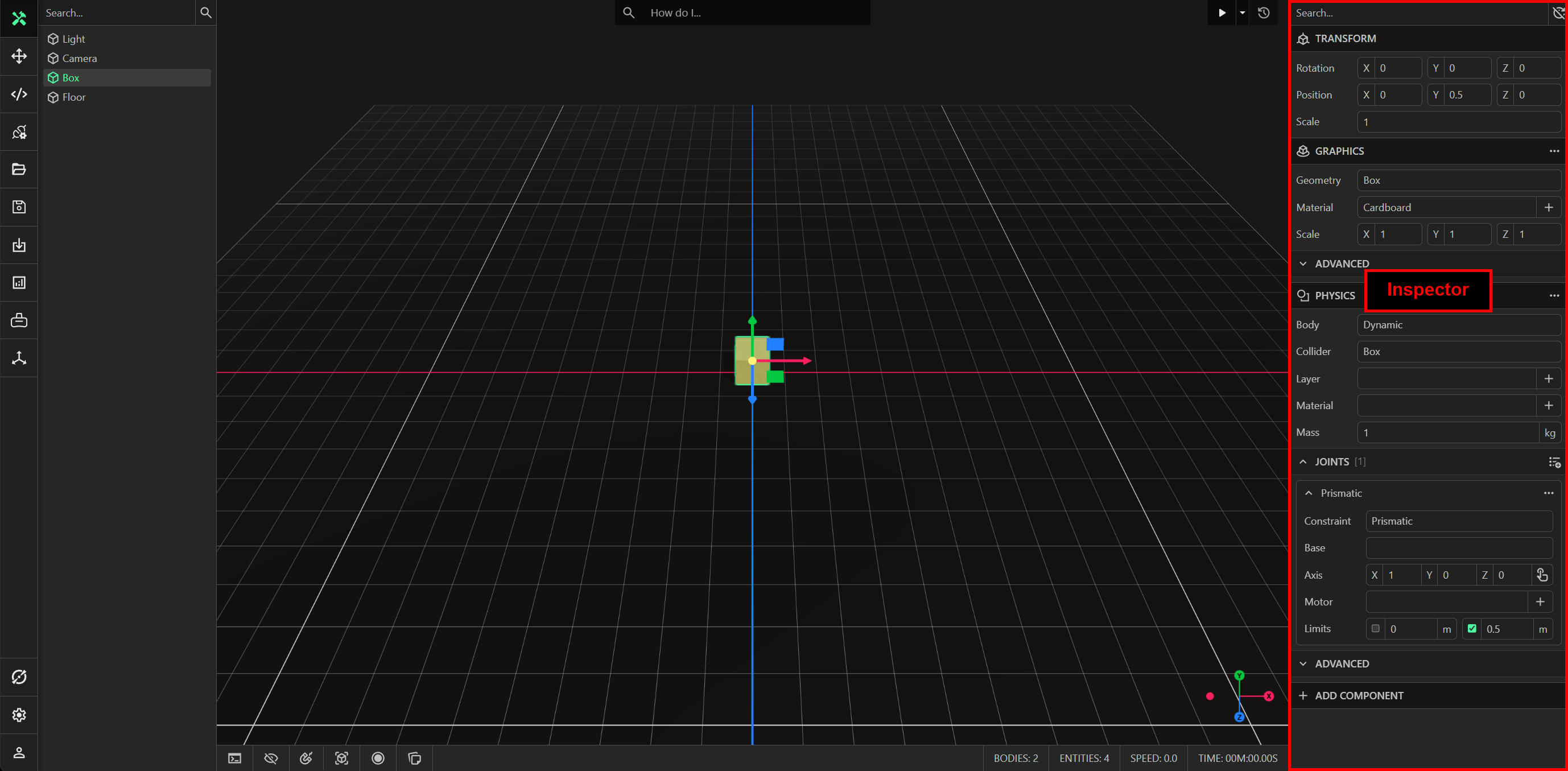
The inspector lists components added to the currently selected entity. It can be used to add, modify and remove components on the selected entity. You can only do this to one selected entity at a time.
Adding Components
To add components to an entity, you must first select the entity to which you want to add components. The inspector lists all components currently added to the selected entity. Click the Add Component button, then select the component type you wish to add to that entity. The added component will then be displayed in the inspector. The dropdown menu will list the built-in components (such as the physics component, motor component, etc.), including any scripted components that you created. The Add Component dropdown menu also includes a search bar, allowing you to search for the component you want to add.
Modifying Components
Components may have editable properties. These properties are listed in the inspector underneath the component. For example, the transform component has editable properties for the rotation, position and uniform scale. The physics component has editable properties for the body, collider, layer, material, mass, joints, etc. Some properties may be disabled, and others may be listed under categories, such as the advanced category of the physics component. Some component properties may not be visible in the inspector.
Removing Components
To remove a component, click the ellipsis to the right of the component’s name and then select Delete.
Renaming Components
To rename a component, click the ellipsis to the right of the component’s name and then select Rename.
Searching Components
The search bar at the top of the inspector can be used to search for a component by name. This will filter the list and display components that match your search term.
Live Updating
Live updating is enabled by default, resulting in the inspector properties being modified while the simulation is running. You can click the live update buton to the right of the search bar to disable live updating.
Component IO
To inspect the IO of a component, you can click the ellipsis to the right of the component’s name and then select IO. You can only inspect the IO for certain types of components, e.g. motors and sensors. This operation will cause a dialog window to open, allowing you to see the component’s IO signals and configure direct IO connections. This operation will be hidden for components that don’t have IO.
Component Tools
To inspect the tools for a component, you can click the ellipsis to the right of the component’s name and then select Tools from the context menu. The context menu lists all the tools that can be applied to the component. These include tools created through the script editor and tools included in an imported package.